

Merci
Un Raspberry est un microordinateur, et dans microordinateur, il y a ordinateur. Et en effet, on peut assez facilement transformer cette carte électronique en ordinateur disons... conventionnel, avec clavier, souris et surtout écran ! En fonction de l\'utilisation de ce dernier, il peut être très intéressant d\'avoir un écran tactile que l\'on peut connecter facilement au Raspberry Pi. C'est pourquoi dans ce tuto, je vais vous montrer comment brancher, régler, et profiter d'un tel dispositif.
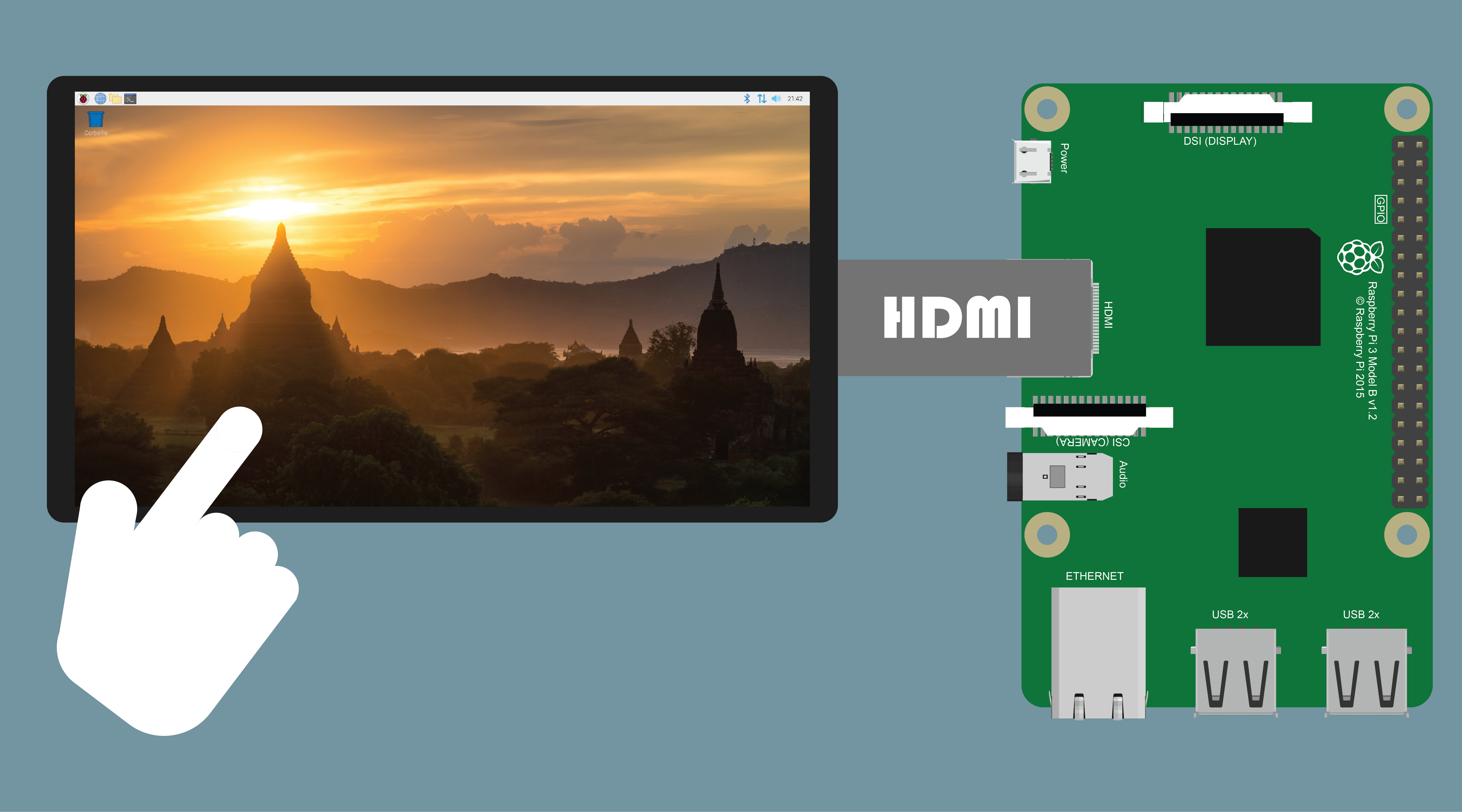
Prérequis
Pour suivre ce tuto, on va avoir besoin de tout ça ! Mais vous avez probablement déjà la plupart du matériel.
- Un Raspberry Pi
- Un écran LCD 7" tactile ~ 50€
- Optionnel Un kit clavier souris sans fil ~ 20€
- Optionnel Une alimentation 5V/2A juste pour l'écran ~ 7€
Une fois tous les éléments réunis, on peut passer au branchement.
Déballage & branchement
Vous n\'avez pas encore reçu votre écran ? Voici à quoi va ressembler la boite et ce qu\'elle contient :


Contenu de la boite
- L'écran LCD 7" tactile
- Un câble HDMI
- Un câble micro-USB
- Des vis + écrous
- Un CD d'installation
Pour utiliser l\'écran avec le Raspberry Pi, le CD ne nous servira pas. (Heureusement, ce serai compliqué sinon !) La première chose que je vous conseille de faire est de visser les 4 vis à l\'écran avec les écrous comme sur la photo ci-dessous. (Et normalement, pas besoin de tournevis). Elles assurent une certaine protection aux composants se trouvant au dos de l\'écran : cela évite leur contact avec une surface métallique par exemple.

Une fois les vis installées, on va pouvoir brancher l\'écran au Raspberry (éteint de pref.). Pour ce faire, rien de plus simple. Il suffit de relier le câble HDMI entre chaque port ainsi que le câble micro-USB à une des deux entrées de l\'écran et relier l\'autre côté à un port USB du Raspberry.


Question
Pourquoi y a-t-il deux entrées micro-USB sur l'écran ?
La présence de deux ports s\'explique par le fait que des fois, il sera nécessaire d\'avoir une alimentation supplémentaire juste pour l\'écran. En effet, lorsque le Raspberry "travaille", il va consommer plus de courant et il n\'en restera pas forcément assez pour alimenter en plus l\'écran. À ce moment-là, un petit éclair jaune va s\'afficher en haut à droite de ce dernier. La solution est donc de brancher une alimentation supplémentaire sur le 2° port. Attention : On ne peut se contenter de brancher l\'écran uniquement à une alimentation sans le brancher au Raspberry, sinon, les données du tactile ne pourraient plus être traités par le Raspberry.
Réglage de la résolution
La qualité d'écran est mauvaise ? Il y a des bandes noires sur le côté ? C'est normal, il faut faire quelques réglages côté Raspberry ! Tout d'abord, ouvrir un terminal et entrer :
sudo nano raspi-config
Se rendre dans Advanced Options -> Resolution. Pour un écran 7", j'utilise la résolution DMT Mode 4 640x480 60Hz 4:3 Ce n'est pas vraiment celle qui est le plus adapté à l'écran, mais à l'utilisation c'est celle que je préfère car le texte est affiché relativement gros alors que sur les résolutions type 1280x720 ou 1920x1080, on ne voit pas grand-chose. Cependant, libre vous de tester chaque résolution pour trouver celle qui vous conviens le mieux.
Problème
Des bords épais autour de l'écran ?
L'utilitaire sudo raspi-config permet de changer facilement la résolution d'un écran. Cependant, il ne permet pas de choisir tous les paramètres de configuration disponibles sur le Raspberry. Pour pouvoir régler tous ces paramètres, il faut modifier le fichier /boot/config.txt, en entrant par exemple la commande :
sudo nano /boot/config.txt
Si vous rencontrez un problème avec des bordures trop larges, il suffit de dé commenter la ligne suivante (enlever le # du début de ligne) :
disable_overscan=1
Pour que les modifications de ce fichier soient prises en charge, il faut enregistrer (Ctrl+X -> Y (ou O) -> Entrer), puis redémarrer le Raspberry Pi.
Pour rappel, on redémarre le Raspberry Pi à l'aide de la commande suivante :
sudo reboot
Vitesse de curseur de souris anormalement lente ?
Pour ceux qui utilisent l'écran avec une souris sans fil, vous avez dû remarquer que le curseur se déplace à une vitesse lente, comme s’il lagait. Heureusement, il existe une solution à ce problème !
Entrez tout d'abord la commande suivante :
sudo nano /boot/cmdline.txt
Vous allez obtenir un fichier avec un certain nombre de paramètres, tous sur une ligne. Pour résoudre le problème de curseur de souris, il faut ajouter à la fin de cette ligne ceci : "usbhid.mousepoll=0". Enregistrer la modification (Ctrl+X -> Y (ou O) -> Enter) puis redémarrer le Raspberry Pi.
Au prochain démarrage, la souris se déplacera enfin normalement !
Commentaires